
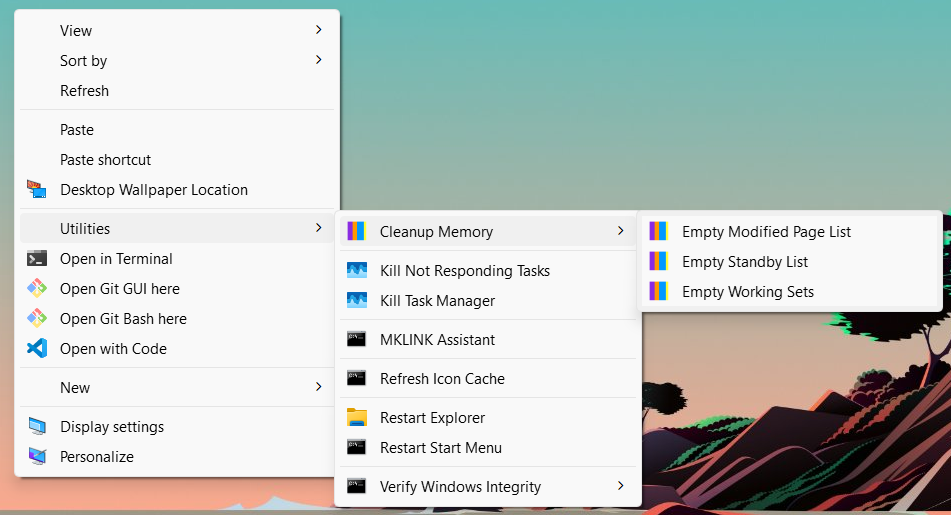
Features
- Kill Not Responding Tasks: Finds and kills all non-responding tasks
- Kill Task Manager: Forcibly closes the Task Manager process to resolve issues
- Restart Explorer: Restarts Windows Explorer to resolve various UI issues
- Restart Start Menu: Restarts the Start Menu to resolve various UI issues
- Verify Windows Integrity: Verify and repair system files using the System File Checker (SFC) tool and Deployment Imaging Service and Management Tool (DISM)
Optional Addons
- Restart Explorer7: Optional feature for explorer7 users to restart explorer 7 without needing the log off. (Requires explorer7 to be installed into
C:\Utilities\explorer7.) - MKLINK Assistant: Assists in creating symbolic/hard links, and directory junctions using the MKLINK command
- Refresh Icon Cache: Refreshes the icon and thumbnail cache to fix icon display issues.
- Cleanup Memory: Free up memory with by clearing the Working Sets, Standby List, and Modified Page List with the RAMMap Memory Cleanup Script.
Instructions
- Click the button at the bottom of this page to download the Utilities Menu ZIP archive.
- Extract the contents of the ZIP file to a folder of your choice.
- Copy the
Utilitiesfolder to the root of yourC:drive(C:\Utilities). - Double-click the
Add Utilities Menu.regfile to add the Utilities Menu to your desktop context menu.
To remove, simply double-click the Remove Utilities Menu.reg file.
Addon Instructions
Explorer7
- Download explorer7 from the official releases page and extract the source files into
C:\Utilities\explorer7. Then follow the instructions to set it up on your system. (A windows 7 or xp iso file is required for explorer7. You can find one on archive.org).
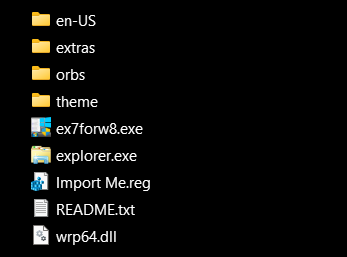
If done correctly, the file structure should look like this:
- Enable Modern Apps: Double-click the
Enable Modern Apps.regfile included in theexplorer7\extradirectory to enable support for modern apps in explorer7. - AcrylicColorization: Double-click the registry file for your desired setting in the
explorer7\extras\AcrylicColorixationdirectory. - ColorizationOptions: Double-click the registry file for your desired setting in the
explorer7\extras\ColorizationOptionsdirectory. - Themes: Double-click the
aero.regfile located in theextras\Themesdirectory to enable to aero theme. (Alternatively, if you know how to work with registry files, you can use theaero.regfile as a template to make a registry file for your own themes)
Cleanup Memory
- Download and install Sysinternals Suite from the Microsoft Store.
- Double-click the
Add Cleanup Memory.regfile located in theextras\Addonsdirectory.
To remove, simply double-click the Remove Cleanup Memory.reg file located in the extras\Addons directory.
Refresh Icon Cache
- Double-click the
Add Refresh Icon Cache.regfile located in theextras\Addonsdirectory.
To remove, simply double-click the Remove Refresh Icon Cache.reg file located in the extras\Addons directory.
MKLINK Assistant
- Double-click the
Add MKLINK Assistant.regfile located in theextras\Addonsdirectory.
To remove, simply double-click the Remove MKLINK Assistant.reg file located in the extras\Addons directory.